Introduction
Commercial label printing spans nearly every corner of industrial operations — product identification, asset tracking, GHS chemical compliance, OSHA safety communication, and more. Done poorly, it leads to peeling labels, unreadable barcodes, regulatory violations, and wasted material.
The stakes are real. Hazard Communication ranked #2 among OSHA's most frequently cited standards in FY2025, with 2,546 violations recorded — many tied to labeling failures. And that's just one compliance category.
What makes commercial label printing harder than it looks is the number of variables that interact: printer type, label stock, adhesive chemistry, design setup, environmental exposure, and printer settings all affect the final result. This guide walks through each one so you get it right the first time.
TL;DR
- Match your printer type to the correct label stock: thermal transfer, direct thermal, inkjet, and laser all require different media
- Industrial environments demand chemical-resistant, UV-stable, or temperature-rated materials; standard office stock will fail
- Always run a test print before a full production run — scaling errors and misalignment only show up on physical output
- Compliance labels (GHS, OSHA, ANSI Z535) must include all mandated elements before going to press
- For high-volume, variable-data, or compliance-driven work, dedicated industrial label printers consistently outperform office alternatives
What You Need Before Printing Commercial Labels
Preparation determines output quality. The wrong printer, stock, or software creates problems that compound with every label you run.
Printer Type and Specifications
Four printer types handle the bulk of commercial label work:
| Printer Type | How It Works | Best For |
|---|---|---|
| Thermal Transfer | Heated ribbon transfers ink to label stock | Durable, long-lasting industrial labels |
| Direct Thermal | Heat-sensitive stock darkens without ribbon | Short-term labels: shipping, receipts |
| Inkjet | Liquid ink sprayed onto stock | Full-color product labels, lower volumes |
| Laser | Toner fused with heat | High-volume office or product labeling |
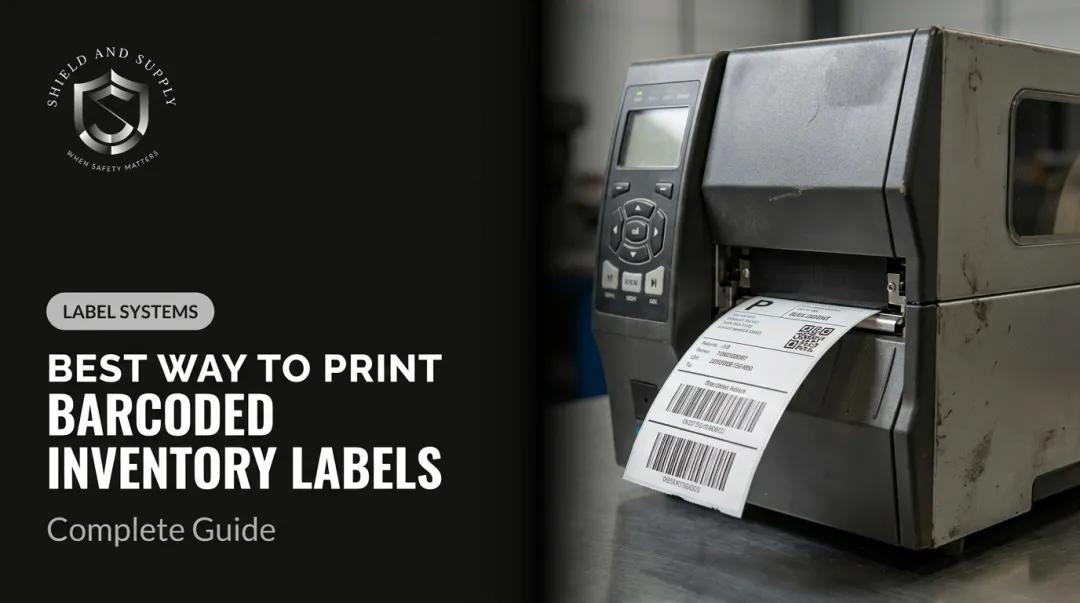
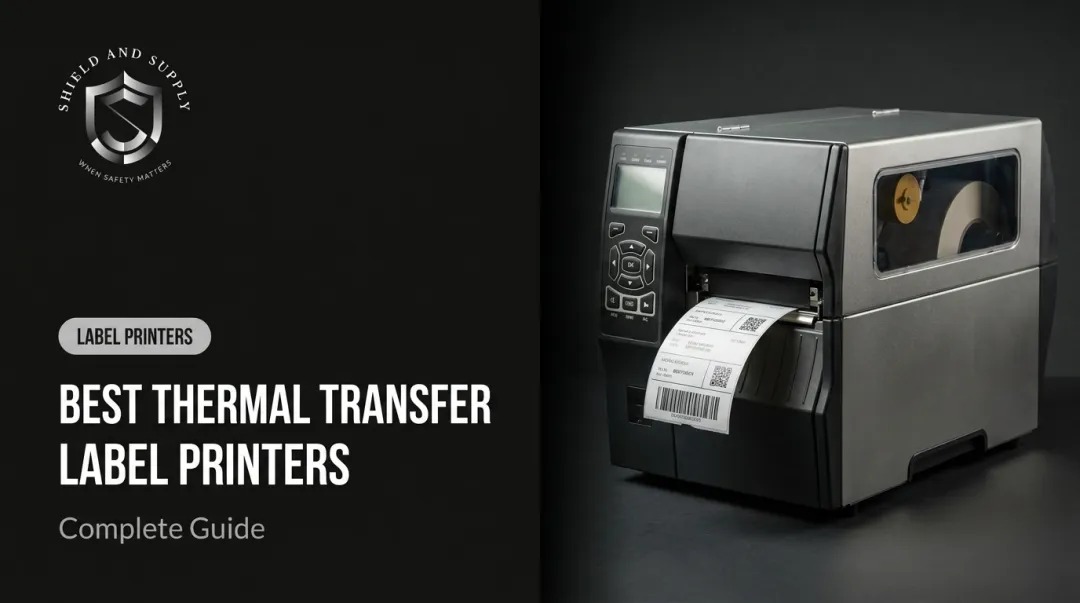
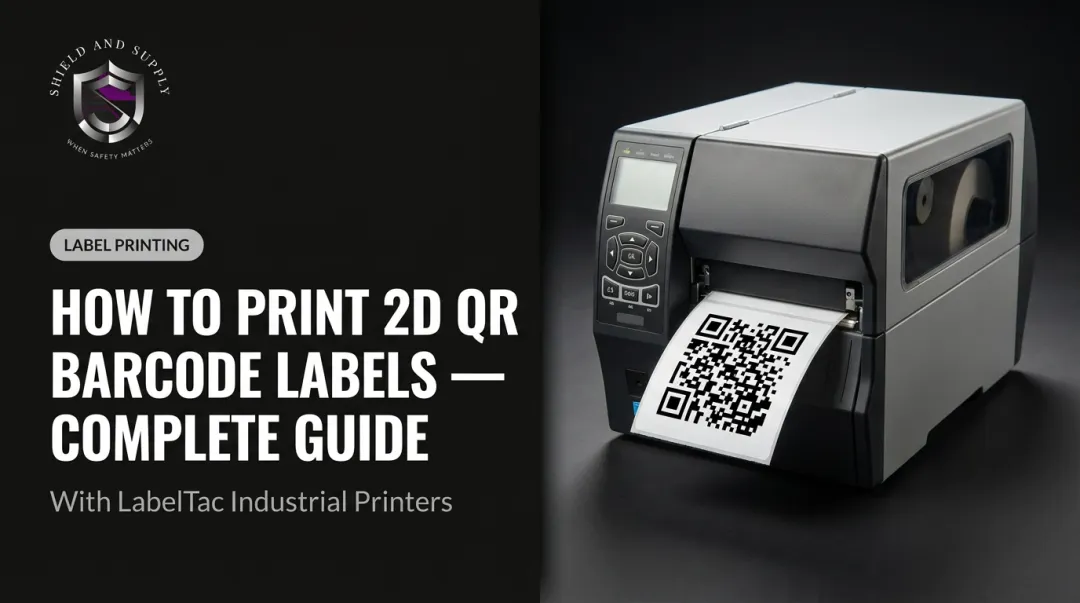
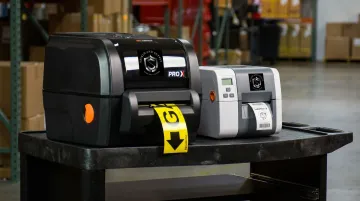
For industrial and warehouse environments, dedicated label printers consistently outperform standard office printers in media handling, throughput, and durability. Shield and Supply's LabelTac® printers are built specifically for this — the LabelTac® Pro X ($1,299.99) handles supplies from ½" to 4" wide with 300 DPI thermal transfer printing and built-in Ethernet/USB, while the LabelTac® 9 ($3,999.00) scales up to 9"-wide labels at up to 2,500 labels per day. Both carry a Full Lifetime Warranty.
Key specs to match to your use case:
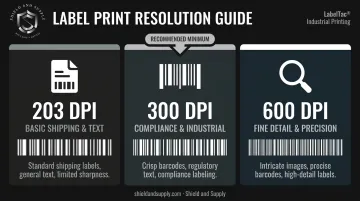
- Print resolution (DPI): 203 DPI for basic shipping labels; 300 DPI for crisp barcodes and compliance text; 600 DPI for fine detail
- Media width compatibility: Confirm the printer handles your label dimensions
- Connectivity: Ethernet for networked/shared production environments; USB for standalone workstations
Label Materials and Adhesives
Face stock options by environment:
- Paper — Cost-effective for general indoor identification; not suited for moisture, chemicals, or outdoor exposure
- Polyester/PET — Chemical and moisture resistant; service temperatures from -40°F to 300°F; rated for outdoor use
- Polypropylene — Good moisture resistance; flexible; suitable for squeezable containers
- Vinyl — Flexible, UV-stable, waterproof; rated for 5+ years outdoor durability; Shield and Supply's LabelTac® vinyl supplies include chemical-resistant, UV-stable formulations for industrial use
Adhesive types and when to use them:
- Permanent acrylic — Standard bonding for most flat, clean surfaces
- Removable — Repositionable; limited service life
- Freezer-grade — Bonds at low temperatures; standard adhesives can become brittle below 40°F
- High-tack/aggressive — For rough, textured, or low-energy plastic surfaces like polyethylene and polypropylene, which 3M classifies as below 36 dynes/cm surface energy — standard adhesives won't bond reliably to these materials
Mismatched adhesive and substrate is the most common — and most preventable — cause of label failure in industrial settings. When in doubt, test on the actual surface before a full run.
Design Software and Templates
Commercial label design requires software that handles compliance elements — safety pictograms, barcodes, variable data, regulated text blocks, and precise dimensions. General tools like Word or basic editors lack the precision needed for industrial label formatting.
Shield and Supply's LabelSuite™ is included free ($299.99 value) with every LabelTac® printer. It covers:
- Pre-built templates for OSHA 29 CFR 1910, ANSI Z535, GHS HazCom 2012 (all 9 pictograms in color), NFPA 70E arc flash, ASME A13.1 pipe marking, and MSHA standards
- Barcode and QR code generation (Code 39, Code 128, Data Matrix)
- Variable data fields and CSV/Excel import for batch label runs
Before printing, confirm your design file defines:
- Exact label dimensions
- Bleed zone (background extends past trim line)
- Safety area (all critical content stays inside this boundary)
- Trim boundaries
How to Print Commercial Labels: Step-by-Step
Step 1: Define Your Label Requirements
Identify the use case first — it drives every other decision:
- Product identification → size and material based on product surface and environment
- GHS/chemical compliance → specific required elements per OSHA 29 CFR 1910.1200
- Shipping → carrier-compatible format (typically 4"×6" direct thermal)
- Asset tracking → barcode symbology and variable data requirements
- Safety signage → ANSI Z535 color codes and signal word requirements
Also determine: quantity needed, whether data is static or variable (lot numbers, serial numbers), applicable regulatory standards, and the substrate the label will be applied to.
Step 2: Select and Load Your Label Stock
Match face stock and adhesive to your Step 1 findings, then confirm stock is rated for your printer type:
- Thermal transfer stock requires a ribbon
- Direct thermal stock does not (and will produce blank output in a thermal transfer printer without ribbon)
- Inkjet and laser stocks have specific coatings — laser-rated stock is required to prevent adhesive melt in the fuser
Loading tips:
- Fan sheets or rolls before loading to reduce static cling and prevent misfeeds
- Use the dedicated label tray or media bypass if available — these paths apply less mechanical stress
- Adjust media guides until snug — not forcing the media, just eliminating slack
Step 3: Design Your Label
Build or select a template that matches your exact label dimensions. Place all critical content inside the safety area. Extend background colors into the bleed zone for full-bleed output.
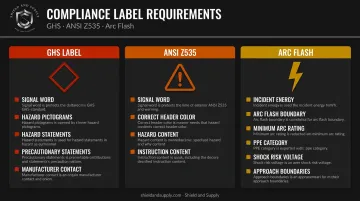
For compliance labels, verify these elements are present before going to print:
| Label Type | Required Elements |
|---|---|
| GHS | Signal word (Danger/Warning), hazard pictograms (black symbol, white background, red diamond border), hazard statements, precautionary statements, manufacturer contact |
| ANSI Z535 | Signal word (DANGER/WARNING/CAUTION/NOTICE), correct header color (red/orange/yellow/blue), hazard and instruction content |
| Arc Flash | Incident energy at working distance, arc flash boundary, minimum arc rating, PPE category, shock risk voltage, approach boundaries |
Step 4: Configure Printer Settings and Run a Test Print
Critical settings to check before every run:
- Set media type to Labels in the print driver
- Set scaling to 100% / Actual Size — never "Fit to Page"
- Match paper size to your label sheet dimensions exactly
- Select appropriate print quality (higher DPI for barcodes or fine regulatory text)
Test procedure:
- Print on plain paper first
- Overlay the plain paper print on your label stock to check alignment
- Print one label sheet and scan any barcodes or QR codes to confirm readability
- Once confirmed, commit to the full production run
Step 5: Print, Inspect, and Store
Run production in manageable batches. Inspect the first few labels from each batch for:
- Alignment drift
- Ink or toner consistency
- Smearing or streaking
- Inkjet output: allow adequate dry time before handling or stacking
Store unused label stock:
- Flat in original packaging
- Cool, dry location away from direct sunlight
- Away from heat sources — adhesive and face stock degrade with heat and humidity exposure
Key Factors That Affect Commercial Label Print Quality
Printer-to-Material Compatibility
Incompatible pairings are the most common source of print failure. Running direct thermal stock in a thermal transfer printer without ribbon loaded produces blank output. Running non-laser-rated stock through a laser printer risks adhesive melting into the fuser — HP's own support documentation confirms that exposed adhesive can damage printer components and cause paper jams.
Always verify the stock is rated for your specific printer type before loading.
Print Resolution (DPI)
Resolution directly affects barcode scannability and the legibility of small-print compliance text. Zebra's guidance breaks it down clearly:
- 203 DPI — Adequate for basic text and shipping labels; readable barcodes but limited sharpness
- 300 DPI — Balances speed and quality; recommended for compliance labels and crisp barcodes
- 600 DPI — Fine text, precise barcodes, intricate images
For industrial compliance labels where barcodes must scan reliably across the label's service life, 300 DPI is the practical minimum.
Adhesive-to-Substrate Match
Low-energy plastic surfaces — polyethylene, polypropylene — resist standard acrylic adhesives. Surface energy below 36 dynes/cm means the adhesive can't wet out the surface effectively, leading to poor initial tack and eventual lifting.
For these surfaces, specify high-tack or aggressive adhesive formulations. For curved surfaces, consider a more flexible face stock to prevent edge lift.
Environmental Exposure
Getting the adhesive right is only part of the equation. A label that looks perfect at application can be illegible within weeks if the face stock isn't rated for the environment it lives in. Match your material to your actual conditions:
- Chemical-resistant polyester or vinyl for exposure to solvents and harsh cleaners
- UV-stable vinyl or polyester with UV-resistant laminate for outdoor applications (rated 5+ years)
- Polyester rated to 300°F for high-heat environments; polyimide to 500°F for circuit-board use
- Waterproof vinyl with freezer-grade adhesive for moisture-heavy or cold-storage settings
Common Mistakes When Printing Commercial Labels
Most label printing errors are avoidable — they stem from a handful of recurring oversights that surface at the worst possible time: mid-run or after a full batch is already printed.
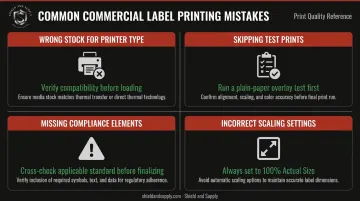
- Wrong stock for the printer type — Direct thermal stock in a thermal transfer printer produces blank output; non-laser-rated stock in a laser printer risks fuser damage. Verify compatibility before loading.
- Skipping test prints — Alignment errors and scaling problems are invisible until you print. Running a full batch without a test wastes an entire roll or sheet pack.
- Missing compliance elements — Omitting GHS pictograms, OSHA signal words, or NFPA arc flash data creates regulatory exposure. Cross-check the applicable standard before finalizing any compliance label design.
- Incorrect scaling settings — "Fit to Page" shifts label content outside safety areas, misaligns multi-up sheets, and renders barcodes unscannable. Always set to 100% Actual Size.
Troubleshooting Common Commercial Label Printing Issues
Labels Printing Misaligned or Off-Center
Misalignment usually traces back to a template or driver mismatch. Check these first:
- Verify template dimensions match label stock exactly
- Confirm print driver paper size matches the label sheet
- Reset scaling to Actual Size (100%)
- Use the printer's alignment calibration tool if available
- Run a plain-paper overlay test before reprinting
Print Is Faded, Smeared, or Blank
Faded or smeared output typically points to a supplies or settings issue. Start here:
- Verify stock and printer type compatibility
- Check ribbon installation and remaining supply
- Increase print darkness/density setting incrementally
- Clean the print head using the manufacturer's recommended method
Labels Peeling, Not Sticking, or Lifting at Edges
Adhesion failures are almost always preventable — surface prep and adhesive selection are the two most common culprits:
- Confirm adhesive specification matches the substrate and surface conditions
- Clean and dry the application surface before applying
- Check ambient and surface temperature — standard adhesives may fail below 40°F
- Switch to a higher-tack or more flexible adhesive for curved, rough, or low-energy surfaces
Frequently Asked Questions
How do I print labels for a business?
Start by identifying your label use cases — product, shipping, compliance, or safety — then select a printer type and label stock matched to your volume and environment. For high-volume commercial use, a dedicated label printer (such as the LabelTac® series) is more cost-effective than running labels through inkjet or laser office printers.
How do small businesses print shipping labels?
Most use a direct thermal label printer with 4"×6" shipping stock connected to their carrier platform (UPS, FedEx, USPS, or third-party software like ShipStation). Direct thermal is the preferred format for shipping because it requires no ribbon and produces fast, clean output.
What type of printer is best for commercial label printing?
Thermal transfer printers are the most widely used in industrial and commercial settings — they produce durable, long-lasting prints on a wide range of materials. Direct thermal works well for short-lived labels like shipping. Inkjet or laser suit full-color product labels at lower volumes.
What materials are best for industrial labels in harsh environments?
Polyester, polypropylene, and vinyl stocks with UV-resistant laminates or chemical-resistant coatings handle harsh industrial conditions best. Paper stocks are insufficient where moisture, chemicals, abrasion, or temperature extremes are present.
How do I ensure my commercial labels are OSHA or GHS compliant?
GHS labels must include signal words, hazard pictograms, hazard and precautionary statements, and manufacturer contact information. ANSI Z535 governs color codes and signal words for safety labels. Labeling software with built-in compliance templates — like LabelSuite™ — reduces the risk of missing required elements.
What is the difference between thermal transfer and direct thermal label printing?
Thermal transfer uses a heated print head to melt ribbon ink onto label stock, producing prints that resist heat, UV, and chemicals — matched ribbon and label combinations can last up to 10 years outdoors. Direct thermal uses heat-sensitive stock with no ribbon, but those prints fade over time, making it better suited for short-term labels like shipping or receipts.